Cockpit Operating Surface
turns any Virtual Private Server into a powerful, cloud-based computer. Manage, operate, and experience your server just like a real desktop - seamlessly, securely, and from anywhere.
Think about the last time you had to do something on your cloud server. Maybe you needed to check why your app was running slow, or edit a config file, or just see what processes were eating up your RAM.
What did you do? You probably opened a terminal, typed a cryptic SSH command, hoped you remembered the right IP address, and then stared at a blinking cursor in a black box - navigating through a filesystem you can't see, using commands you half-remember, on a machine that has no face.
That's just the reality of owning a server today. It's 2026, and cloud infrastructure still feels like it was designed in 2004. The tools haven't changed much. The experience certainly hasn't gotten friendlier. And if you don't already know Linux by heart, it feels practically impenetrable.
But it's not just developers who feel this pain. Indie hackers juggling five different VPS boxes. Agencies managing client servers. Researchers running compute jobs on remote machines. Students who just spun up their first Droplet. All of them deserve a better way.
We live in an era of unparalleled digital abundance - laptops, desktops, massive cloud servers, edge devices, and home labs. We have data scattered across Dropbox, Google Drive, local SSDs, and S3 buckets. We run processes on AWS, Vercel, a Raspberry Pi in a closet, and a gaming PC.
But ask yourself this: Where is your computer?
Is it the laptop in front of you? The server running your database? The phone in your pocket? The answer is technically "all of them" - yet they feel like completely separate islands. Getting between them requires a dozen different tools: SSH terminals, FTP clients, web dashboards, VNC sessions, and half a dozen command-line utilities that each have their own syntax and quirks.
It's fragmented. Disjointed. Exhausting. We spend more time managing the infrastructure than actually building things on top of it.
We think there is a better way. And we've been building it.
We believe your "computer" should not be defined by a single metal box or a black terminal window. Your computer should be a unified, beautiful surface - one that spans all your devices, is accessible from anywhere on earth with a browser, and feels as natural as the MacBook sitting on your desk. That is what Cockpit Operating Surface is - not another operating system, not another dashboard, but a web application that turns your bare VPS into a full, visual computing environment.
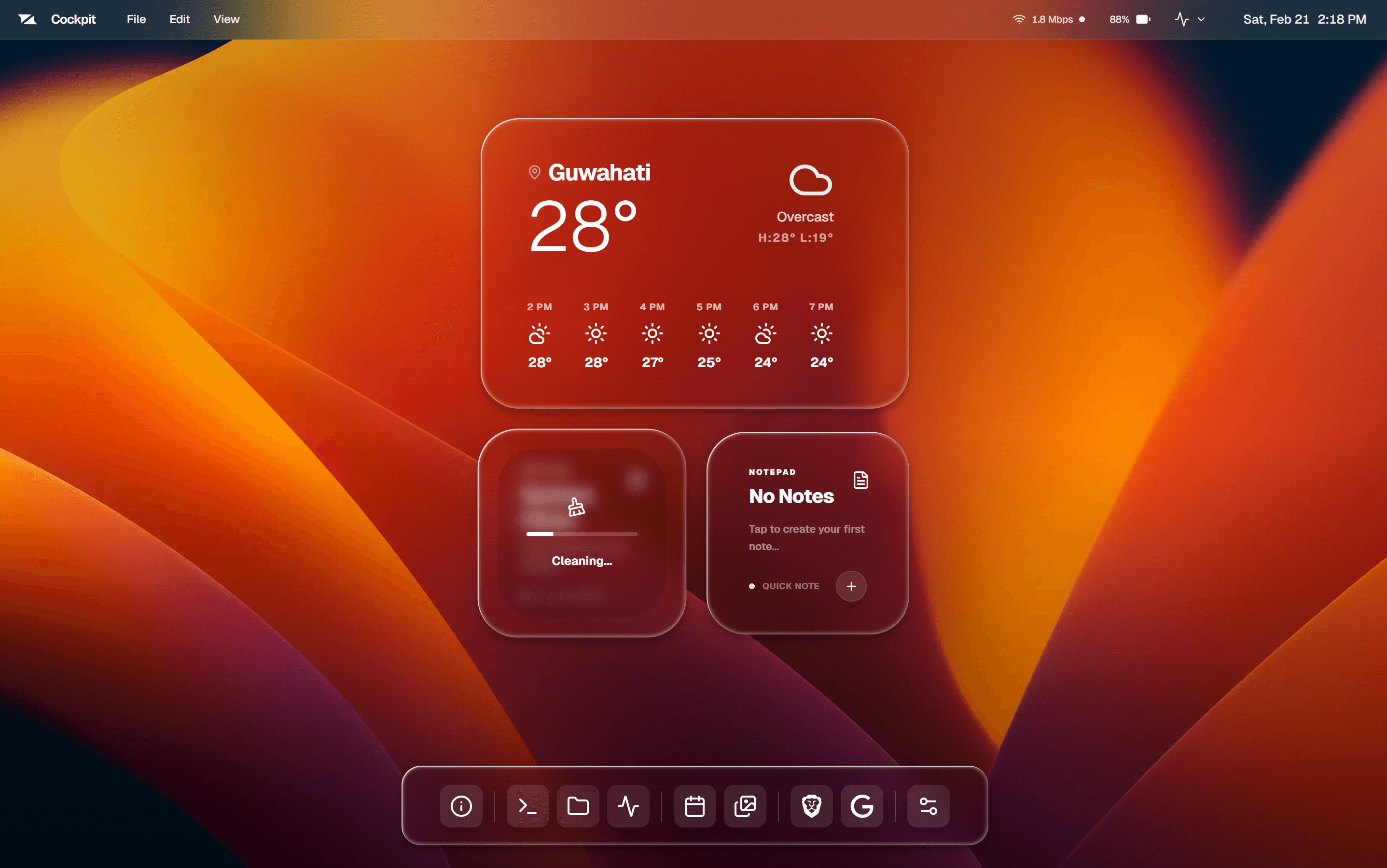
Cockpit Operating Surface
First things first: What is a VPS?
Before we get into Cockpit itself, let's make sure we're on the same page about what a VPS actually is - because everything Cockpit does is built around this idea.
A VPS (Virtual Private Server) is essentially a real computer that lives inside a massive datacenter somewhere in the world. It has its own CPU, RAM, disk space, and a permanent internet connection. Unlike your laptop - which sleeps when you close the lid and loses its connection the moment you leave the WiFi - a VPS runs continuously, 24 hours a day, 7 days a week, rain or shine.
Think of it this way: when you buy traditional "web hosting" from providers like GoDaddy or Bluehost, you're essentially renting a small folder on someone else's computer. You can put files there, but you have very little control. When you buy a VPS, you're renting an entire computer. You get root access. You choose the operating system (usually Ubuntu or Debian Linux). You install whatever you want. You are the administrator, the developer, and the owner - all at once.
The catch? That computer has no screen, no keyboard, and no graphical interface. The only way to talk to it is through a terminal - a text-based interface where you type commands and read plain text outputs. For experienced engineers, this is second nature. For everyone else, it's a steep and often discouraging wall.
What can you actually do with a VPS?
More than you might think. Here are some of the most common things people run on their VPS today:
- Host Websites & Web Apps: Run your Node.js, Python, Go, or PHP backend without the limitations of shared hosting. No cold starts. No vendor lock-in. Full control over your server configuration.
- Run Game Servers: Host a private Minecraft, Palworld, Valheim, or CS2 server for you and your friends with a stable, low-latency connection - no subscription fees after the initial VPS cost.
- Private VPN: Create your own encrypted tunnel using WireGuard or OpenVPN. Browse from any location securely, using your own IP - no trusting third-party VPN companies with your traffic.
- Automation & Bots: Run trading algorithms, social media bots, web scrapers, or scheduled job runners that need to operate around the clock without interruption.
- Self-Hosted Services: Own your data entirely. Run Nextcloud (your own Dropbox), Bitwarden (your own password manager), Jellyfin (your own Netflix), or Gitea (your own GitHub) - all without paying platform fees or handing your data to other companies.
- Development & Staging: Test your applications in a real cloud environment before going live. Share a staging URL with clients without touching your production server.
How much does a VPS cost?
Less than you'd expect. A capable VPS with 1-2 CPU cores, 2GB of RAM, and 50GB of SSD storage typically costs between $4 and $8 per month. You don't need to buy any hardware, set up any physical infrastructure, or worry about electricity and cooling. You just pay the monthly bill, and a full Linux machine is available to you over the internet. Here are the providers we recommend for pairing with Cockpit:
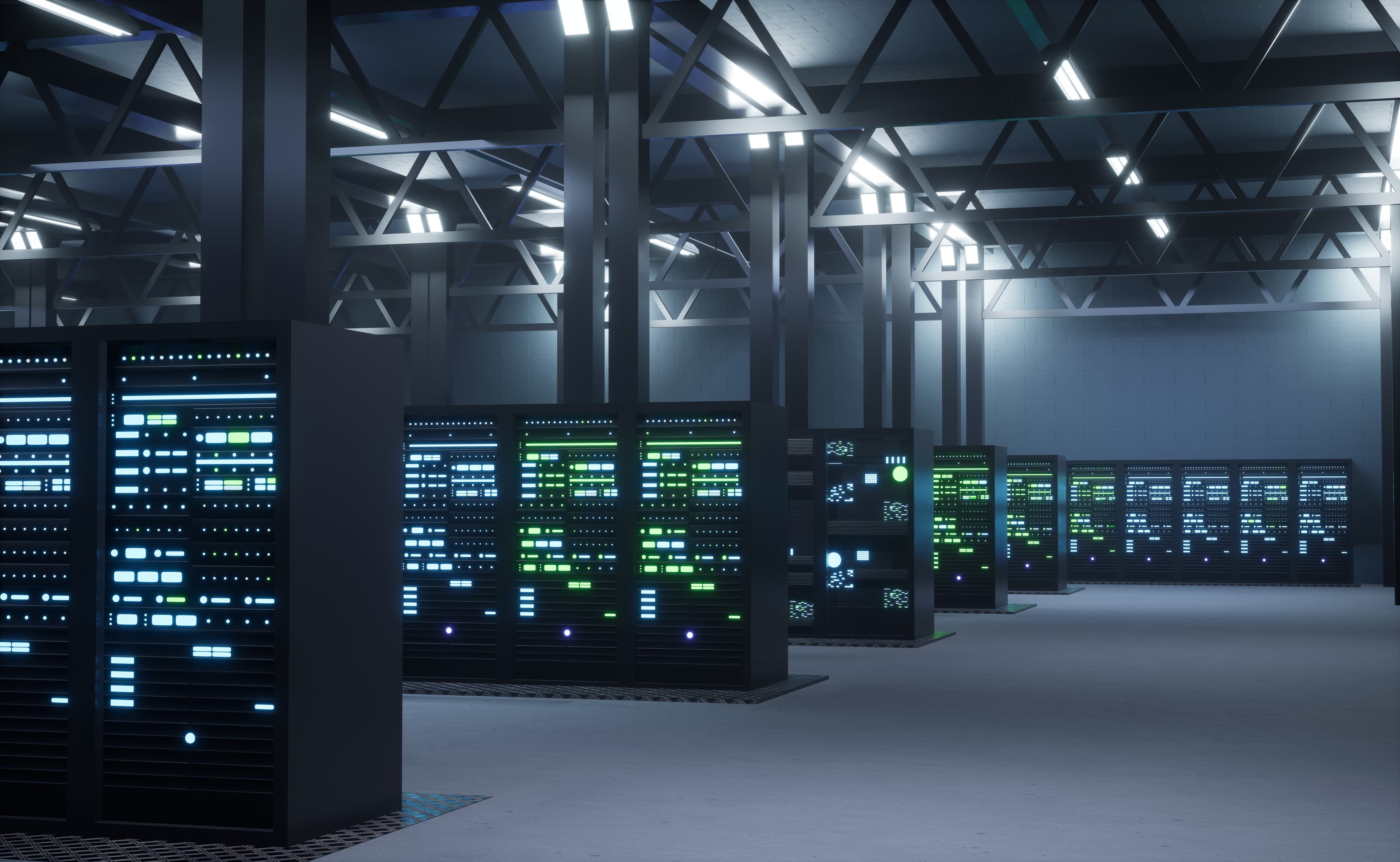
A physical server rack in a datacenter - your VPS is a virtual slice of one of these machines.
High-value VPS hosting with solid NVMe SSD performance at an honest price. A great no-nonsense starting point for your personal cloud - especially if you're just getting started.
Get VPS plans ↗The gold standard for developer-friendly cloud. Clean dashboards, predictable pricing, and one-click app deployments. Their "Droplets" are VPS instances - and they just work.
Get VPS plans ↗Global datacenter locations with high-frequency compute options. Great for latency-sensitive projects where physical proximity to your users matters.
Get VPS plans ↗Amazon's simplified VPS offering - the power of AWS infrastructure without the overwhelming complexity of the full AWS console. Reliable, enterprise-grade, and beginner-accessible.
Get VPS plans ↗Once you've registered with any of these providers and spun up a VPS, you get handed a set of credentials: an IP address, a username (usually root), and a password. Traditionally, you'd open a terminal, run an SSH command, and navigate a Linux machine entirely through text commands. That is exactly the wall Cockpit eliminates.
What is CockpitOS?
Cockpit Operating Surface is not a traditional operating system. It doesn't replace Ubuntu or Windows on your machine. Instead, it sits on top of your VPS - a web application that gives your bare Linux server a face.
Think of it as a Meta-Operating System. One that floats above your physical hardware and cloud instances, connecting them together into a single, cohesive visual environment. It treats your distributed infrastructure - whether it's a $5 VPS in Frankfurt, a GPU rig in your basement, or a media server in Tokyo - as if it were all one powerful, unified machine.
Here's what that actually looks like in practice. Imagine opening a browser on your iPad at a coffee shop:
- You're greeted with a calm, glassmorphic desktop - familiar like a MacBook, but purpose-built for your VPS. A wallpaper you chose, a dock at the bottom, a menu bar at the top showing your server's live CPU and RAM usage.
- You open the File Explorer and navigate your remote server's entire filesystem - browsing folders, previewing images, editing config files - all without typing a single terminal command.
- You open Terminal and instantly have root access to a machine running in a datacenter halfway around the world - no SSH keys to configure, no IP addresses to memorize after the one-time setup.
- You drag a file from the Explorer window into the Gallery app, and Cockpit handles the transfer - securely, with progress tracking, verified byte-by-byte.
- You open Task Monitor, see a runaway process eating 98% CPU, and terminate it with one click - from the same browser, on the same iPad, in the same coffee shop.
That is the vision. And that is what's already built and running today.
This is Cockpit. The Interface for the Age of Personal Sovereignty.
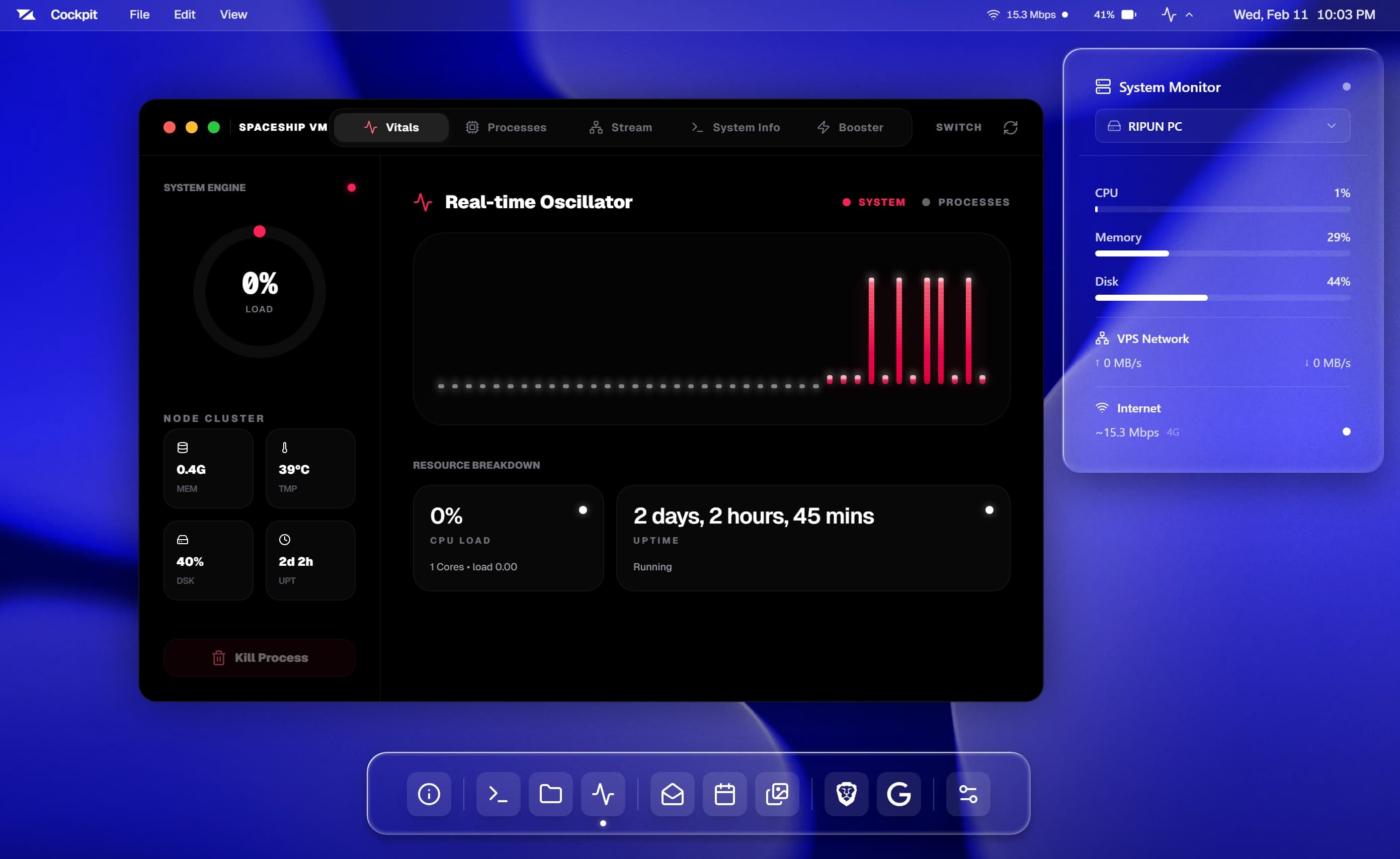
CockpitOS Home Interface - running live at cockpit.ripun.site
The Trinity Architecture
Everything in Cockpit is made possible by a three-part system working in concert. We call it the Cockpit Trinity - and understanding each piece helps you understand why Cockpit feels so seamless compared to anything else.
Each piece has a clear role. None of them can work without the others. Together, they form a complete, self-contained computing environment.
The visual interface that runs in your browser. What you see, click, and interact with.
The backend server that provides authentication, stores data, and orchestrates communication between all parts.
A lightweight agent that installs on your actual server and executes real commands on its behalf.
Let's break each one down.
1.1. Cockpit: The Operating Surface
This is the face of the platform - what you open in your browser. Built with Next.js and Tailwind CSS, Cockpit is designed to both look stunning and function powerfully. We moved deliberately away from the boring, utilitarian admin panels of the past (think cPanel or the AWS Console) and toward a design language that feels alive, modern, and human.
Every element has been given careful thought. The frosted glass panels. The smooth window animations. The subtle blur effects when you hover over the dock. It's the kind of interface you want to spend time in - which matters, because server management shouldn't feel like a chore.
- Glassmorphism & Physics-Based Animation: The interface is constructed from layers of translucent glass with real-time backdrop blurs and Framer Motion animations. Windows scale in from the center when opened, drift slightly when moved, and snap satisfyingly into position. It genuinely feels like a premium product - closer to a luxury vehicle dashboard than a server tool.
- The Lock Screen: Security doesn't have to be dull. Cockpit's lock screen features a full-screen wallpaper, a large glass-style clock, and a PIN pad that appears with a fluid swipe-up gesture - just like unlocking a phone. Wrong PIN? The pad shakes and resets. Right PIN? A smooth unlock animation transitions you directly to the desktop.
- A Real Desktop Environment: Cockpit has a macOS-style menu bar at the top (showing live server metrics), a dock at the bottom, movable and resizable windows, and real-time wallpapers. It's not a website with panels - it's a proper windowed desktop that runs in your browser.
- A Full App Ecosystem: Terminal, File Explorer, Task Monitor, Gallery, Settings, Calendar, Notepad, and more - every app opens as a real floating window. You can drag them, resize them, stack them, minimize them. Just like your everyday desktop, but connected to a server on the other side of the planet.
1.2. CogNode: The Sovereign Server
If Cockpit is the face, CogNode is the brain. It's the backend server application that powers everything behind the scenes. Built on NestJS (a battle-hardened Node.js framework) with a PostgreSQL database managed through Drizzle ORM, CogNode is designed to be self-hosted - meaning you own it, and so do your data.
CogNode runs on your VPS alongside Cockpit. It is the single source of truth for your entire environment. Here's what it actually does:
- Manages Identity & Authentication: CogNode handles user accounts, sessions, and modern authentication. It supports both traditional email/password login and password-less WebAuthn passkeys - meaning you can authenticate with your face, fingerprint, or hardware key instead of remembering a password.
- Orchestrates Real-Time Communications: CogNode maintains persistent WebSocket connections with every Cocktail agent running on your devices. When you click "kill process" in the Task Monitor, CogNode receives that command from your browser and routes it to the correct server's Cocktail agent in milliseconds. It's the traffic controller for your entire infrastructure.
- Stores All Your State: Devices, notes, calendar events, gallery metadata, SSH keys, user settings - all of it is stored in PostgreSQL through CogNode. Your data persists across sessions, devices, and browser tabs.
- Manages Files via Cloud Integration: CogNode handles the file transfer pipeline. When you upload a photo to the Gallery, CogNode coordinates a signed upload to Cloudflare R2 storage, then instructs Cocktail on the VPS to download it from R2 directly - bypassing your laptop entirely for large transfers.
- Runs a Live Speed Test Module: CogNode can measure your server's network performance in real time, displaying download and upload speeds directly in the Cockpit menu bar.
1.3. Cocktail: The Universal Agent
This is the piece that makes real remote control possible. Cocktail is a lightweight, cross-platform agent - a small binary program you install directly on your Linux VPS by running a single command. It's under 50MB, starts automatically on boot, and quietly runs in the background, waiting for instructions from CogNode.
Once Cocktail is installed on a device, that device "wakes up" inside Cockpit. You'll see it appear in your device list. From that moment on, you have full remote access - visually, through the Cockpit interface - without ever opening an SSH terminal again.
Here's what Cocktail can actually do on your behalf:
- Live Telemetry Streaming: Cocktail reads directly from Linux's
/procfilesystem to pull CPU usage, memory consumption, disk space, network I/O, uptime, temperature, and process lists - then pushes these metrics to CogNode over WebSockets every few seconds. No polling. No delays. Real, live data. - Remote Command Execution: When you type
ls -lain Cockpit's Terminal app, that command travels from your browser → CogNode → Cocktail → your server's shell. The output streams back the same path instantly. It is a real SSH-grade terminal session, tunneled through WebSockets. - Full Filesystem Access: Cocktail can list directories, read file contents, create new files and folders, rename, delete, and write edited content directly to disk. This is what powers the File Explorer and the integrated code editor - every action you take in those UIs is executed by Cocktail on the real server filesystem.
- Self-Healing & Cleanup: Cocktail includes a "System Boost" module that intelligently cleans your server - vacuuming system logs, clearing
/tmpcaches, purging unused APT package data, and rotating logs. It streams every cleanup action back to Cockpit in real time as it runs. - Process Management: Cocktail can list every running process on your server and terminate specific ones on command - supporting signals like SIGTERM, SIGKILL, SIGINT, and SIGHUP. You manage your server's processes the same way Activity Monitor lets you manage apps on a Mac.
Core Features & Capabilities
Cockpit is a full-blown productivity environment - every feature is designed to be powerful enough for engineers and understandable enough for anyone. Here's what you can actually do with it.
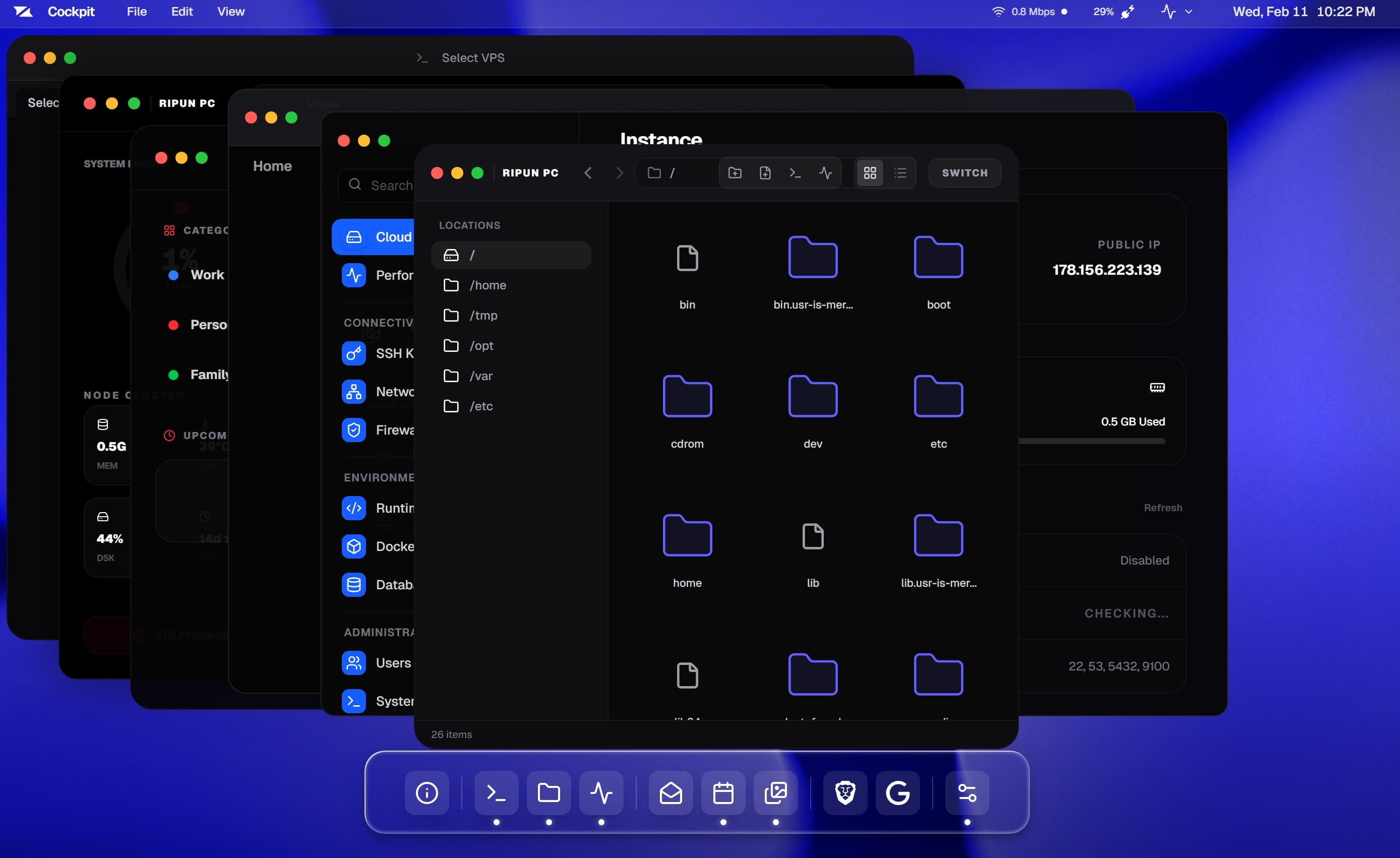
The Cockpit App Ecosystem - all apps running as real windows on your desktop
2.1. The Universal File Browser
Forget FTP clients. Forget scp commands. Cockpit's File Explorer gives you a fully visual, native-feeling file browser that connects directly to your remote server's filesystem. Open it and you see every folder and file on your server - exactly like Finder on a Mac or File Explorer on Windows.
The sidebar gives you quick-access shortcuts to the most important Linux directories: root, home, the tmp folder, var, opt, and etc. The main panel renders your files in either a grid view or a list view, with icons that change based on file type.
- Navigate & Browse: Click folders to enter them. Use back and forward navigation just like a browser. The path breadcrumb always shows you where you are.
- Create Files & Folders: Hit "New Folder," type a name, and the directory is created on the remote server instantly.
- Open & Edit in Place: Double-click a config file like
nginx.confor.envand a full code editor opens. Edit, save - the file is written directly to the server disk with no download or upload step. - Delete with Safety: Every delete prompts a confirmation dialog. Cockpit handles recursive folder deletion in one operation.
- Terminal Integration: Right-click any folder and select "Open Terminal Here" - the Terminal opens pre-loaded at that exact path on your server.
2.2. Integrated Code & Text Editor
The old workflow for editing a remote file was painful: download via FTP, edit locally, re-upload. Cockpit eliminates every step in that process.
Cockpit's editor is powered by the Monaco engine - the same one that powers VS Code - embedded directly inside the File Explorer. Open a text file and it loads with full syntax highlighting, proper indentation, and keyboard shortcuts you already know.
- Direct Remote Editing: Every file access and save goes through Cocktail, meaning you read from and write to the actual disk on the remote machine.
- Syntax Highlighting: JavaScript, TypeScript, Python, Go, Bash, Nginx config, YAML, JSON, HTML, CSS - all rendered with proper color coding.
- Right-Click Context Menu: Create files, create folders, rename, delete - all accessible from a native-feeling context menu anywhere in the file tree.
2.3. Next-Gen Terminal Access
Cockpit doesn't try to replace the terminal - it makes the terminal far more accessible. No SSH key management, no IP memorization, no external tools. Click "Terminal" in the dock and you're directly inside your server.
Built with xterm.js over an encrypted WebSocket connection, this is a real, full-featured terminal emulator connected to your actual server - not a simulated shell.
- Multi-Tab Sessions: Open multiple independent shell sessions. Run a deployment in one tab while watching logs in another.
- Run Anything:
htop,vim,nano,docker compose up- interactive programs, progress bars, colored output, unicode - it all works exactly as you'd expect. - Context Aware: Right-click a folder in the File Explorer and choose "Open Terminal Here" - the terminal drops you directly at that path on the remote server.
- Auto-Resize: The terminal automatically resizes to match the window, sending proper row/column signals so programs like
htopadapt correctly.
2.4. Task Monitor & System Health
Cockpit's Task Monitor is your real-time command center - giving you a clear, live picture of your server's health without ever opening htop.
- Live System Metrics: CPU, memory, disk usage, network I/O (incoming and outgoing), uptime, and temperature - all updated live every few seconds via WebSocket.
- Neofetch Panel: A visual identity card for your server - OS name, kernel version, CPU model, and RAM in a clean layout.
- Live Process List: Every running process sorted by CPU or memory - PID, name, user, CPU%, memory%, RAM, and thread count all visible at a glance.
- Kill Processes Instantly: Spot a runaway process? Click terminate, confirm, and Cocktail sends the kill signal - SIGTERM for a clean shutdown, SIGKILL if needed.
- System Booster: One click triggers a safe cleanup - cleaning
/tmp, rotating logs, purging APT caches - all streamed live as it runs.
2.5. Deep Server Settings
The Settings app gives you a visual interface for things that normally require memorizing a dozen different Linux commands - from SSH key management to firewall rules to Docker containers.
- SSH Key Management: View, add, and delete authorized SSH public keys - written directly to
~/.ssh/authorized_keyson the remote server. - Open Ports & Network: See every open port, which service is using it, and the traffic type - all auto-discovered by Cocktail.
- Firewall (UFW) View: Check whether your firewall is active and see the full ruleset without memorizing
ufw status verbose. - Runtime Detection: Auto-detects Node.js, Python, Docker, Go, Java, and Bun - showing versions and availability at a glance.
- Docker Containers: Live list of all running containers with ID, name, image, and current status.
- Database Inspector: Detects PostgreSQL, MySQL, Redis, and MongoDB - showing connection counts, data sizes, and response latency.
2.6. The App Ecosystem
Beyond server tools, Cockpit ships with a full suite of personal productivity apps - all running as real floating windows, connected to the same backend, inside the same unified environment.
- Gallery: A photo management app that scans your server for images and lets you upload new ones via drag-and-drop - transferred securely via Cloudflare R2 with SHA-256 verification and live progress tracking.
- Notepad: Rich-text note editor with bold, italic, underline, and alignment support - notes sync through CogNode and persist across sessions.
- Calendar: A monthly event planner with WebSocket-powered real-time sync. Changes appear instantly across all open Cockpit sessions on all devices.
- Brave Browser: A fully embedded web browser - URL bar, navigation controls, and full page rendering inside the window frame.
- Google Browser: A fully embedded web browser - URL bar, navigation controls, and full page rendering inside the window frame.
- System Info: Cockpit's help and information center - version, build number, architecture specs, security details, and expandable documentation.
2.7. Security: Defense in Depth
Managing servers remotely raises an obvious security concern. Cockpit takes this seriously at every layer of the stack.
- Passkeys & WebAuthn: The most modern authentication standard - your browser uses biometrics (Face ID, fingerprint, or a hardware key) with no password to steal or phish.
- PIN-Protected Lock Screen: The desktop locks when idle, with a shake-and-reset animation to make brute-force attempts immediately visible.
- Double-Submit CSRF Protection: Every server-modifying command is protected by anti-CSRF tokens.
- TLS Everywhere: All traffic between your browser, CogNode, and Cocktail is encrypted in transit - terminal keystrokes, files, commands, everything.
- SHA-256 File Verification: Every file transferred through Cockpit is verified before being written to disk, ensuring integrity for every upload and download.
Example Use Cases
Cockpit isn't designed for a specific type of person - it's designed for anyone who has a VPS and wants to actually use it without the learning curve. Here are a few real-world scenarios that show the range of what it enables.
The Indie Hacker
Scenario: Ben runs 5 different SaaS products across 3 cheap VPS instances from different providers to keep hosting costs low.
Problem: Every time he pushes an update, he opens 5 different terminal windows, SSHs into each server separately, runs the same git pull and pm2 restart commands on each one, and manually checks the logs on each to see if anything failed. It takes 45 minutes every deployment.
With Cockpit: Ben runs the Cocktail install script on all 3 VPSs in 3 minutes. Now all his servers appear on one Cockpit desktop. He uses the Terminal to run deployment commands, the Task Monitor to confirm services restarted cleanly, and the File Explorer to verify his build files are in the right place - all without switching windows or re-authenticating. What took 45 minutes now takes 8.
The Self-Hoster
Scenario: Veeshal runs Nextcloud, Jellyfin, and a Minecraft server on a single VPS. He also has a NAS at home with 40TB of archived media.
Problem: Managing Docker containers requires memorizingdocker ps,docker logs, anddocker restart for every container. Moving media between the home NAS and the VPS requires FTP client configuration.
With Cockpit: Veeshal opens Settings to see all his running Docker containers with live status indicators. He restarts the Jellyfin container with one click. To move a movie archive to the VPS, he opens the File Explorer, navigates to his home NAS on the left panel, his VPS on the right, and drags the folder across. Cocktail handles the entire transfer.
The Freelancer & Agency
Scenario: A small design agency hosts client websites on a staging VPS and needs to share progress with clients without exposing server credentials.
Problem: The only way to let a client "check" the server is to give them full SSH access - which is dangerous, confusing for non-technical clients, and impossible to revoke selectively.
With Cockpit: The agency uses Cockpit's user management to create a read-only guest account for the client. The client logs into Cockpit, sees only the project folder for their site, can view the files and check uptime - but cannot execute commands or access other areas of the server. It's like giving clients access to a curated view of their own project, without touching anything else.
The Non-Technical Founder
Scenario: Amara is a non-technical co-founder who needs occasional visibility into her startup's server - checking if the app is up, how many users are active, whether the database is running - without relying on her engineer for every status question.
Problem: The server is completely opaque. Every question requires a Slack message to the CTO.
With Cockpit: Amara logs into Cockpit from her Chrome browser. She can see real-time CPU and memory usage on the menu bar, check the process list to confirm the app server is running, and read the system logs if there was a downtime event - all without a single terminal command, and without the engineer needing to explain anything. Cockpit puts infrastructure visibility in everyone's hands.
Technical Deep Dive
For the engineers in the room - here's what the stack actually looks like, and more importantly, why each technology was chosen. Every decision was made to optimize for reliability, type safety, and real-time performance.
- Frontend - Next.js 14+ (App Router) + Tailwind CSS + Framer Motion: Next.js App Router gives us server-side rendering for the page shell, while the desktop environment itself runs as a fully client-side React application. Tailwind CSS for styling, Framer Motion for all the window animations, transitions, and micro-interactions - delivering real 60fps physics-based movement even at high complexity. We chose Framer Motion specifically for its layout animation engine, which powers the window drag-and-resize experience.
- Backend - NestJS (strictly typed Node.js framework): NestJS gives us a battle-hardened, deeply opinionated architecture - modules, services, guards, interceptors, WebSocket gateways - all in one framework. Every layer is strictly typed in TypeScript with no
anytypes permitted. This makes the codebase refactorable at scale and prevents entire categories of runtime bugs. - Database - PostgreSQL + Drizzle ORM: PostgreSQL is the most reliable open-source relational database available. Drizzle ORM is the modern TypeScript-first SQL toolkit - unlike Prisma, it compiles to raw SQL with zero runtime overhead, and its type inference means every query result is fully typed from the schema definition up. Our schema covers users, sessions, devices, events, notes, gallery metadata, SSH keys, and more.
- Agent - Cocktail (custom Node.js binary, compiled with pkg/bun): Cocktail is a long-running Node.js process compiled to a standalone binary. It reads directly from
/proc/stat,/proc/meminfo, and/proc/net/devfor zero-overhead system metrics - no external commands, no polling delay. Shell commands are executed viachild_process.spawnwith stdio piped back over WebSocket in real time. - Real-Time Protocol - Push-first JSON over WebSocket: We chose WebSockets over REST polling for all live data because polling introduces latency and wastes bandwidth. Our protocol is event-driven: the agent pushes metric snapshots every 2 seconds and command output character-by-character as it arrives. When your CPU spikes in Frankfurt, the gauge on your screen in São Paulo moves in under 200ms end-to-end.
- File Storage - Cloudflare R2 with Signed URLs: For binary file transfers (uploads to Gallery, large backups), we use Cloudflare R2 presigned upload URLs. The browser gets a signed URL from CogNode, uploads directly to R2, and then CogNode instructs Cocktail on the VPS to pull from R2 - meaning your laptop never sees the bytes twice, and large files don't bottleneck through the backend server.
- Authentication - WebAuthn (Passkeys) + Session Cookies: WebAuthn authenticates users with public-key cryptography tied to the operating system's biometric sensor or hardware key. No password is ever sent over the network. Session state is managed through HTTP-only cookies with CSRF protection using the double-submit pattern - standard session cookie to authenticate, rotating CSRF token embedded in every mutating request.
The Future Vision
What you see today is Cockpit v1 - and it is already a fully functional, production-ready desktop environment for your VPS. But we are building toward something much bigger.
The long-term vision is simple: a world where anyone can own and operate powerful cloud infrastructure without needing to be a systems administrator. Here's the roadmap.
A curated marketplace of server applications - WordPress, Ghost, Outline, Nextcloud, Gitea, n8n - deployable to your VPS with a single click. Cockpit handles the Docker setup, Nginx config, SSL certificate, and domain routing automatically. No terminal required.
Cockpit will allow you to define "Jobs" - tasks that automatically distribute across all your connected servers based on current load. Need to transcode a video? Cockpit splits the task across 3 idle VPSs, processes in parallel, and reassembles the output. Your fleet of cheap servers becomes a personal compute cluster.
We're integrating LLMs directly into the Cockpit environment - not as a chatbot, but as a true infrastructure assistant. You'll be able to ask in plain English: "Why is this server responding slowly?" - and Cockpit will analyze live metrics, cross-reference recent logs from Cocktail, correlate the spike with a specific process, and explain the root cause in plain language, complete with a suggested fix.
A developer marketplace where the community can build and publish Cockpit plugins - custom apps, specialized configuration editors, service integrations, and workflow automations. A MongoDB Studio plugin. A Redis key browser. A GitHub Actions status panel. Built by the community, for the community, installed in one click.
Conclusion
The computer is no longer a device. It's a network - a collection of machines scattered across datacenters, offices, and living rooms, collectively more powerful than any single laptop, but historically impossible to manage without deep technical expertise.
For too long, we accepted that this had to be hard. We accepted clunky admin panels, confusing terminal commands, and the assumption that "user experience" was a concept reserved for consumer apps - not for the infrastructure that runs the internet.
Cockpit Operating Surface rejects that assumption. Good design, smooth interactions, and a beautiful interface are not luxuries - they are how you make powerful tools actually usable by real people. The Linux terminal is not unfriendly because people are incapable of learning it. It's unfriendly because no one has invested in making it better.
That investment is Cockpit. We are the interface that makes your server feel like your own machine. We are the layer that removes the command-line barrier without removing any of the power underneath it. And we are just getting started.
If you're a developer, an indie hacker, a self-hoster, or simply someone who has ever wanted to own your own corner of the internet without spending weeks learning Linux - Cockpit is for you.
Thank you